Inside the Atendyo dashboard
This is where you see what your assistant says, look after people who want a human and teach it what it doesn't know. These are real screenshots of the dashboard with demo data: Café Luna is a made-up business and the emails are examples.
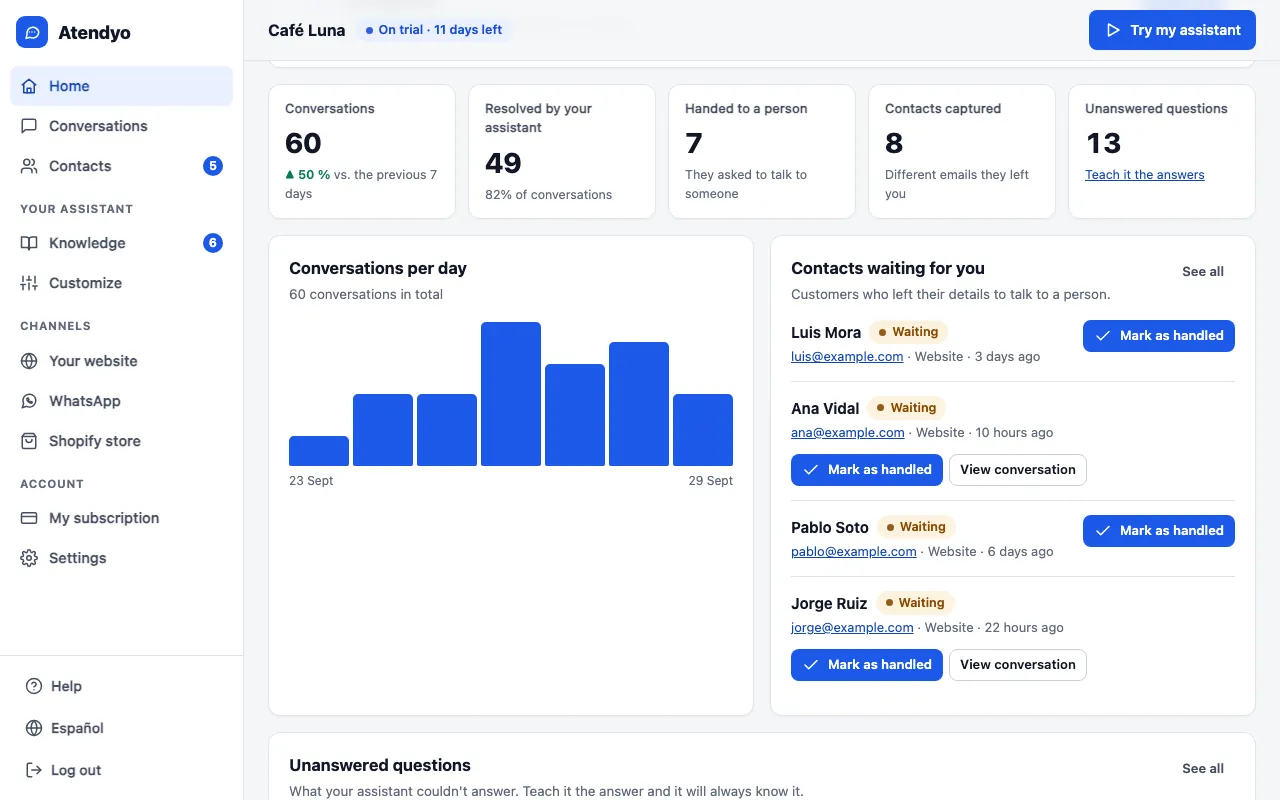
Home: how the week is going
Conversations over the last 7 or 30 days, how many the assistant resolved, how many went to a person, the contacts people left and the questions it couldn't answer. When you start, a checklist guides you through the first five steps.
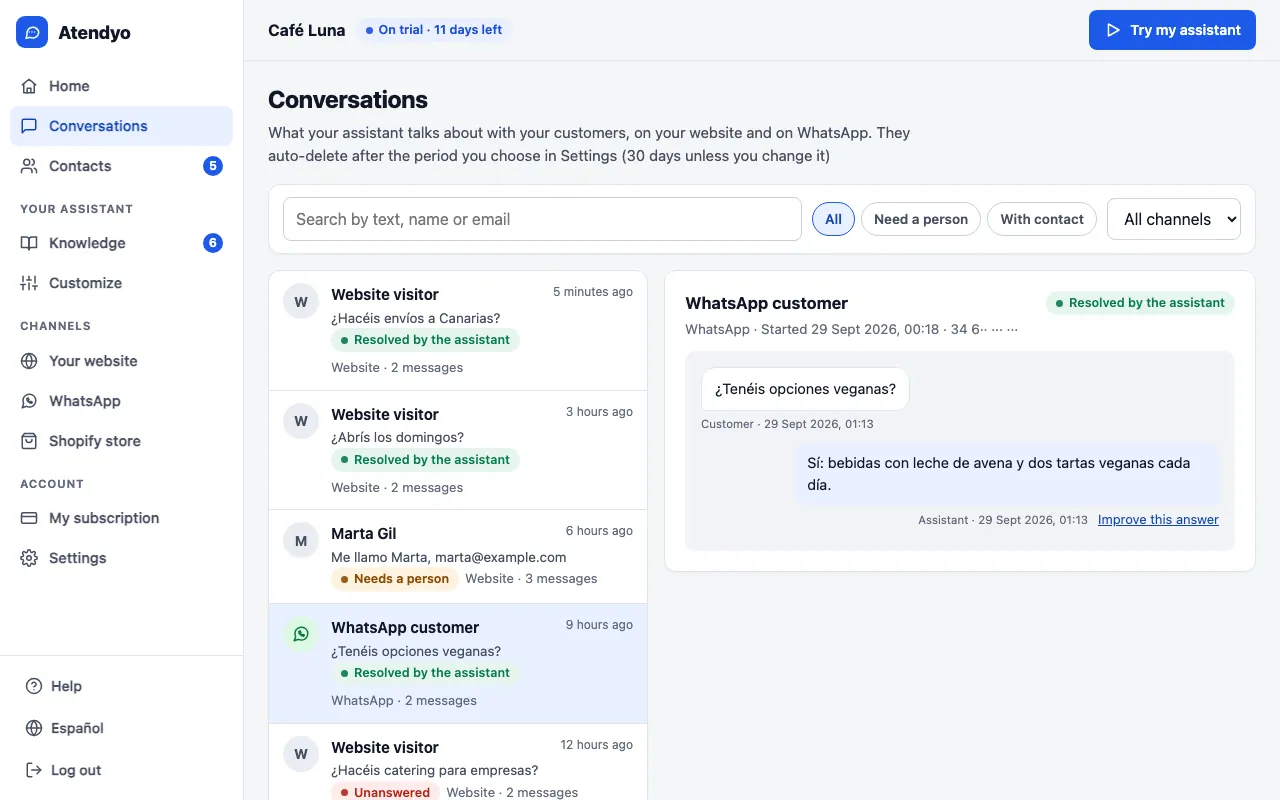
Conversations: everything it says
Website and WhatsApp conversations in a single inbox. You search by text, name or email, filter the ones that need a person or left contact details, and open any of them to read it in full. If you don't like a reply, you improve it right there.
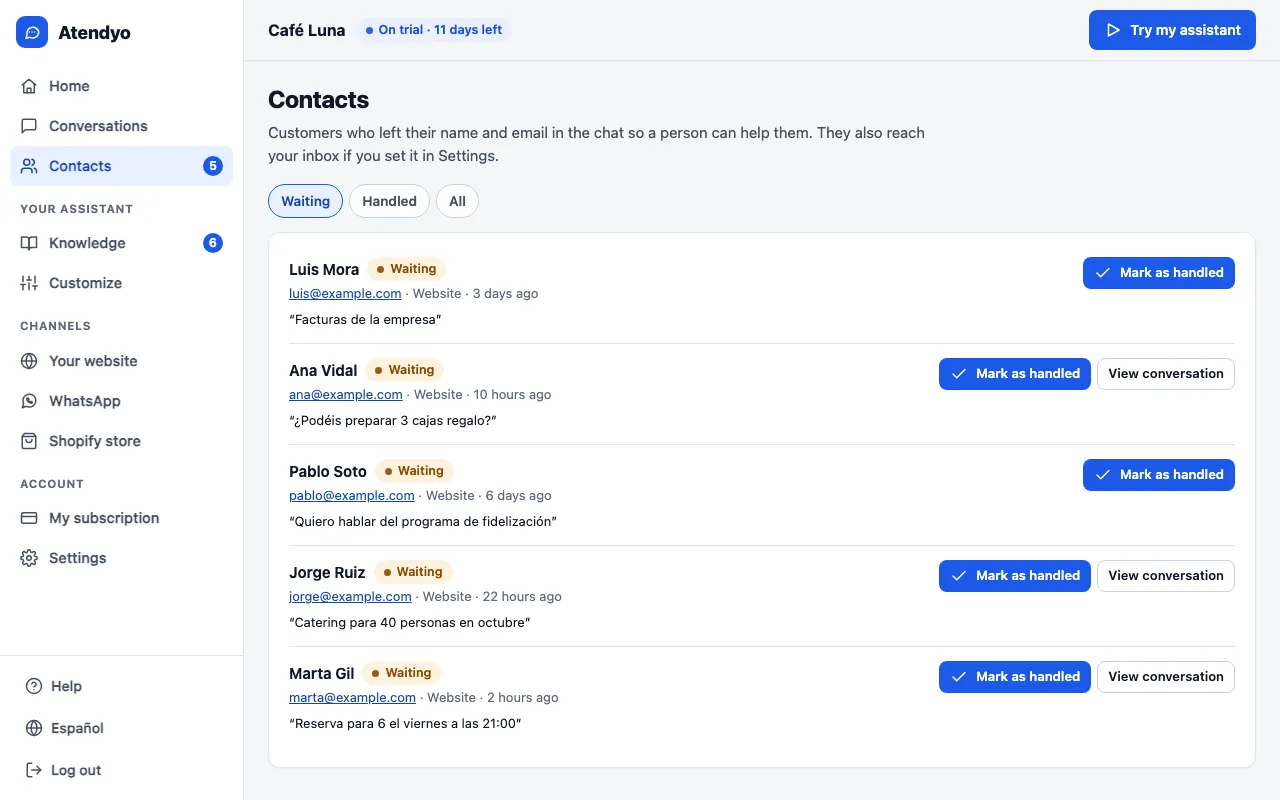
Contacts: who wants to talk to you
Customers who left their name and email to be helped by a person, with what they need. You also get them by email. Once you've written to them, you mark them as handled.
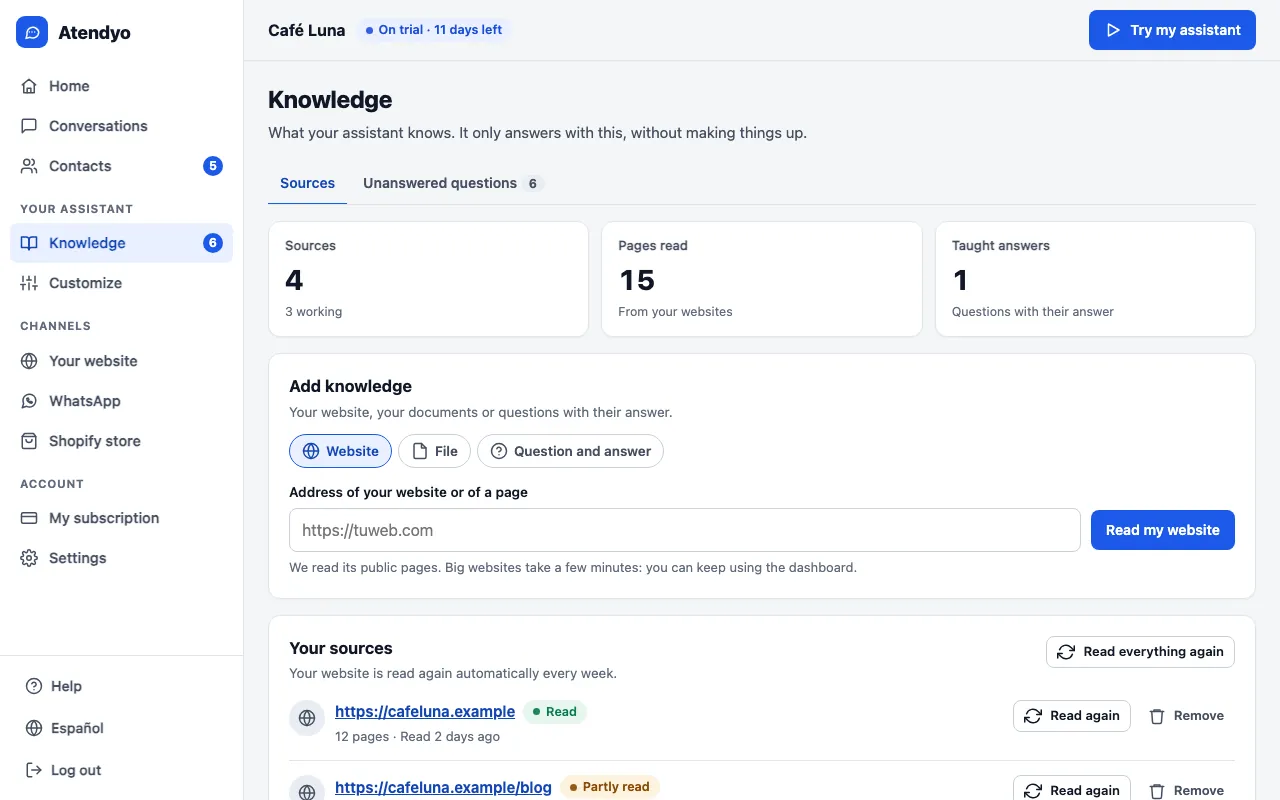
Knowledge: what it knows
You add your website, a document or a question with its answer. You see which sources it has read and how many pages, and ask it to re-read them when you change something. In “Unanswered questions”, most frequent first, you teach it what it didn't know, with an AI draft if you like.
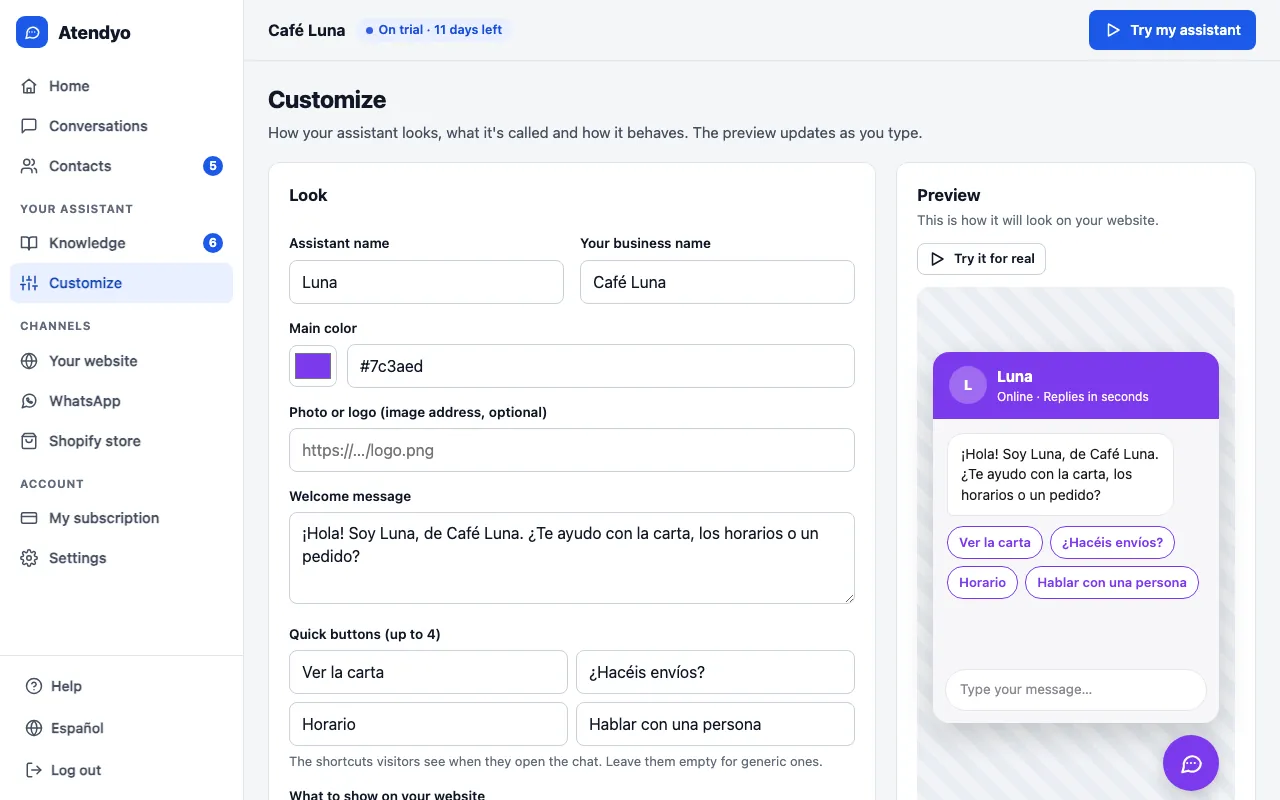
Customise: how it looks and how it talks
Assistant name, colour, logo, welcome message and quick buttons, with a preview that changes as you type. This is also where you give it instructions and choose whether your website shows the chat, the WhatsApp button or both.
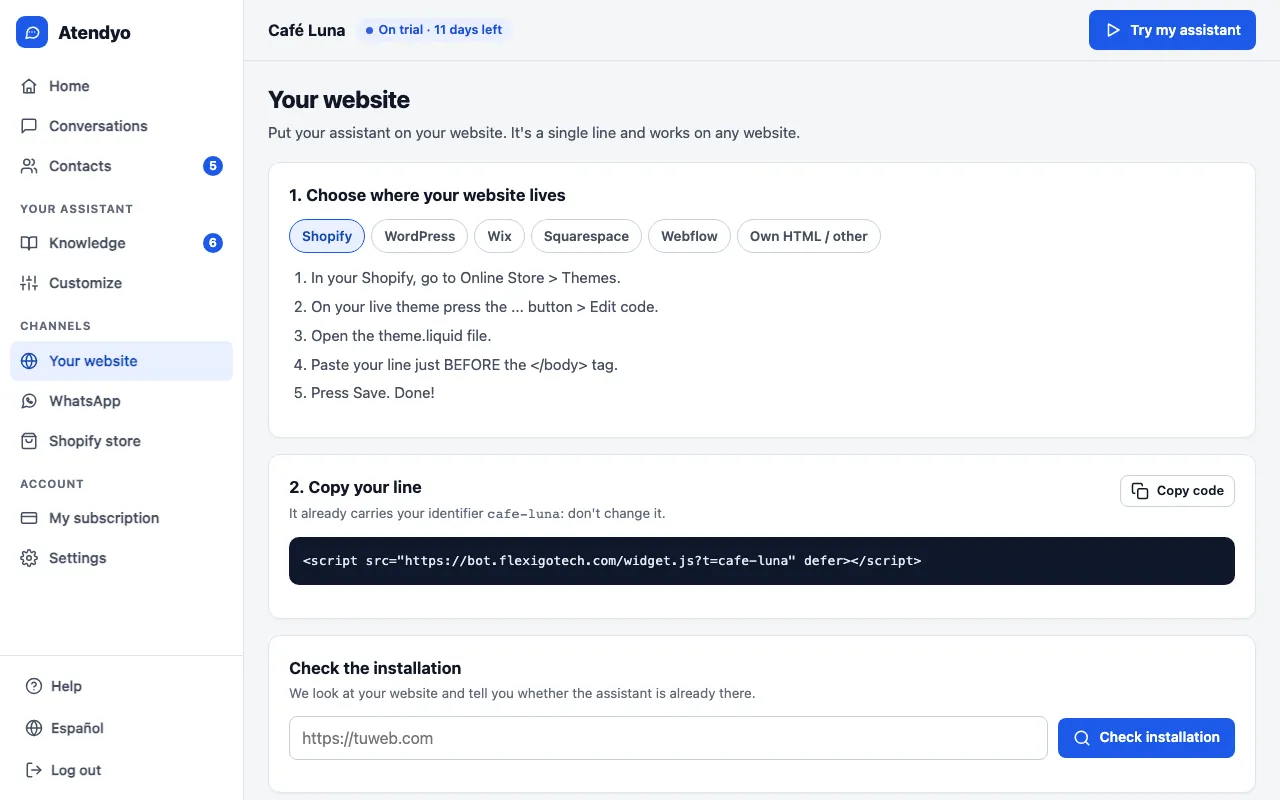
Your website: one line and done
You pick your platform and see the steps, with your line ready to copy. Then you paste your website address and the dashboard checks whether the assistant is already in place.
And the rest of the dashboard
You log in with the key you receive by email when you buy. The dashboard works in Spanish and English.
Client loginSee it with your website first
Free, no sign-up. If you like it, you start 15 days without paying anything today.
Already decided? Create a free account or buy now.